Shop the Latest Printers at Great Prices
Explore a wide range of high-quality printers designed for home, office, and business use. Print smarter with advanced features, seamless connectivity, and dependable results
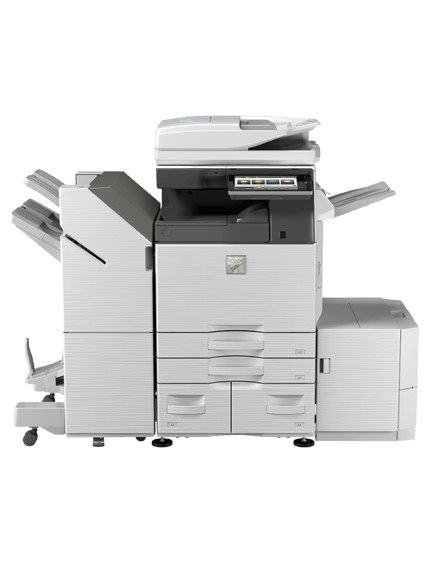
TYPES OF PRINTERS
Find the right printer for your needs — from everyday documents to high-volume office printing.

Inkjet Printer
Uses liquid ink sprayed through microscopic nozzles. Ideal for vibrant color prints, photos, and everyday documents at home
- Excellent photo & color
- Affordable upfront cost
- Compact & quiet operation

Laser Printer
Uses a laser beam and toner powder to produce sharp, fast prints. Perfect for high-volume text documents in offices.
- Ultra-fast print speeds
- Low cost per page
- Sharp, smudge-free text
- Handles heavy workloads

All-in-One Printer
Combines printing, scanning, copying, and faxing in one device. The ultimate multi-function solution for home and office.
- Print, scan, copy & fax
- WiFi & mobile printing
- Space-saving single unit
- Auto document feeder
Printer Setup Guide
Follow our simple step-by-step instructions to get your printer up and running in minutes
Unbox Your Printer – Remove all packing tape, foam inserts, and plastic wrapping from the printer body and paper tray.
Load Paper – Open the paper tray and load A4 or letter-sized paper. Adjust the side guides snugly against the paper edges.
Install Ink or Toner – Insert the ink cartridges or toner cartridge as shown in your printer’s quick start guide. Make sure they click into place.
Connect USB Cable – Plug the USB cable into your printer’s USB port, then connect the other end to your computer or laptop.
Power On & Test – Press the power button. Windows or Mac will auto-detect the printer. Go to Settings → Printers & Scanners → Print a Test Page.
Power On the Printer – Press the power button and wait for the printer to fully boot and show the home screen on its display.
Open Wireless Settings – On the printer screen, navigate to Settings → Network → Wireless Setup Wizard.
Select Your WiFi Network – Choose your home or office WiFi network from the list shown on the printer display.
Enter Your WiFi Password – Use the on-screen keyboard to carefully type your WiFi password, then confirm to connect.
Add Printer to Your Computer – Windows: Settings → Bluetooth & Devices → Printers & Scanners → Add a Printer. Mac: System Settings → Printers & Scanners → Add (+).
Drivers Install Guide
A step-by-step guide to downloading and installing the correct driver.
The model number is printed on a label on the front, back, or bottom of your printer (e.g., HP DeskJet 4155e).
Find the model number of your printer. Go to the official support website to input the model number.
Choose your operating system (Windows 10/11, macOS, Linux) and the correct version. Download the full driver package.
Open the downloaded file and follow the on-screen setup wizard. Choose “Full Installation” for all features.
After installation completes, restart your computer. Open a document and try printing to confirm everything works.
Common problems with solutions
Printer not detected by computer
Ensure the USB cable is firmly connected on both ends, or verify the WiFi is on the same network. Try restarting both the printer and computer. On Windows, go to Settings → Printers & Scanners → Remove the printer, then add it again. Update or reinstall drivers if the issue persists.
Wifi keeps disconnecting
Make sure the printer is within range of your WiFi router. Assign a static IP address to the printer in your router settings. Also check that the printer is connected to 2.4GHz and not 5GHz, as many printers don’t support 5GHz bands.
Paper Jam
Turn off the printer first. Gently open all access doors and carefully pull out jammed paper in the direction of the paper path — never pull against it. Remove any torn pieces. Check the paper tray is not overfilled and that you’re using the correct paper size.
Driver installed but scanner not working
If the driver is installed but the scanner is not working, reinstall the full-feature printer and scanner driver instead of the basic driver and restart your computer.
Slow printing performance
Reduce print quality to “Draft” mode, clear the print queue, update the printer driver, and ensure a stable USB or Wi-Fi connection to improve speed.
Ready to Get Your Printer?
Browse our full range of printers and get free shipping on every order.